
It’s been a few months since I started writing DDQ. I’ve finally begun posting EP-1 on my site, Eden’s Den. The site is built from scratch on WordPress — no templates, Blocksy Pro as the base theme. I’d love to write about the build process another time, but today I want to talk about the apps that have been making the writing work.
You can read about how DDQ is made and what “Literary DJ” means in the LINER NOTES.
None of these are sponsored or affiliated at the time of writing (April 2026) — just apps I genuinely use and like.
I use Anthropic’s AI. When I’m building out the DDQ story, the documents I have the AI generate are saved in Markdown (MD) format. Which means I need apps that play nicely with MD. The two I keep coming back to are Ulysses and Visual Studio Code.
For drafting, I use Ulysses. There’s something about it that makes beautiful writing feel intuitive. From quick notes to full blog posts, essays, and novels — it’s simple enough to keep you in the text, and that simplicity is the point.
For the back-and-forth with the AI, VS Code is the one. Line numbers make the final review process so much more efficient — I can point at exactly which line needs attention. If Ulysses is a record on a turntable, VS Code is the audio editor that loads up the waveform and lets you cut into it.
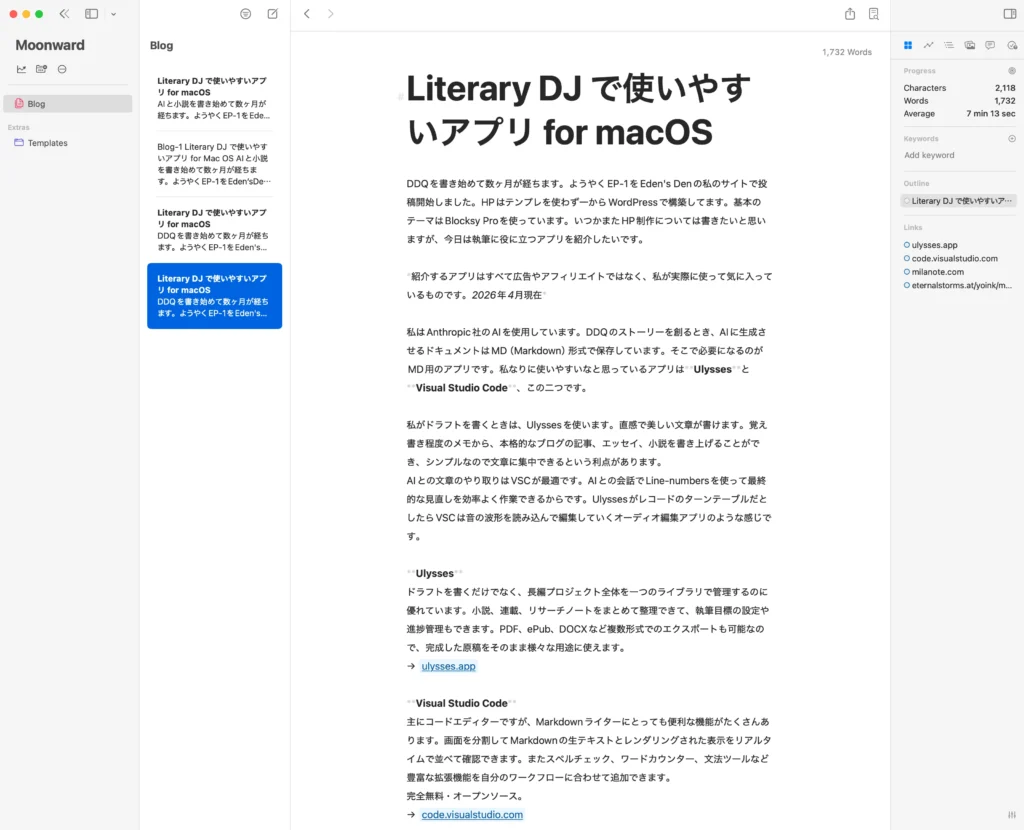
Ulysses
Beyond drafting prose, Ulysses is excellent for managing long-form projects — novels, serialised stories, research notes — all within one organised library. You can set writing goals, track progress, and export in multiple formats including PDF, ePub, and DOCX. If you’re working on something long and want everything in one place, it’s worth exploring the full feature set.
→ ulysses.app
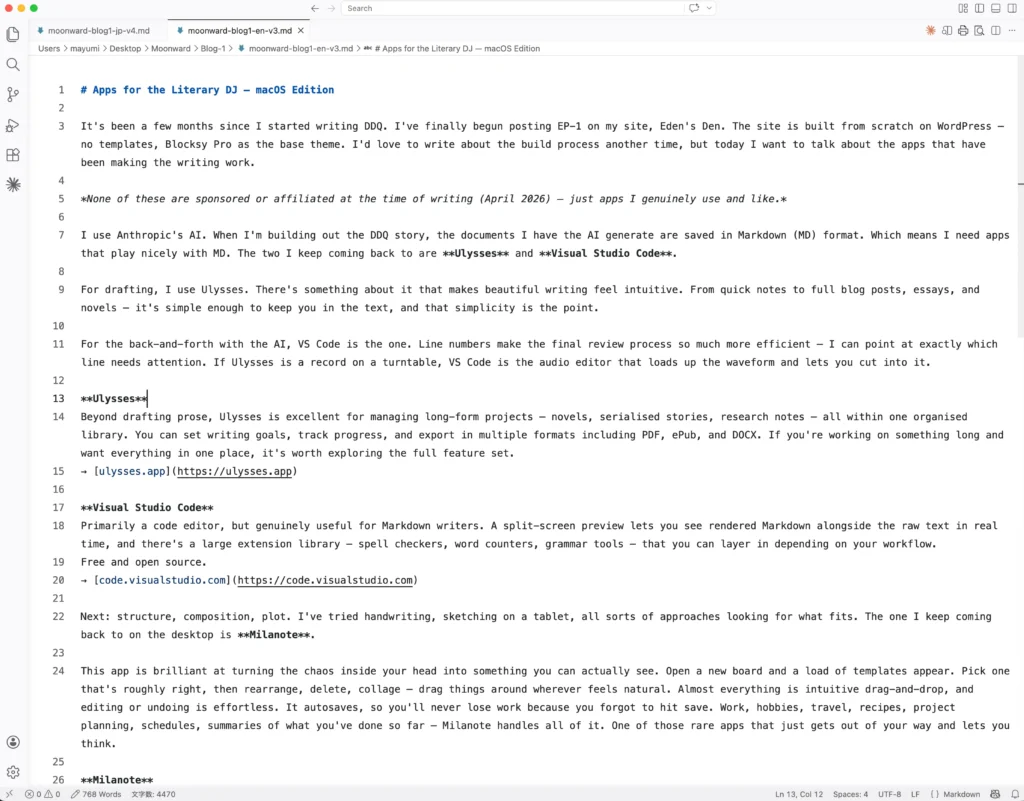
Visual Studio Code
Primarily a code editor, but genuinely useful for Markdown writers. A split-screen preview lets you see rendered Markdown alongside the raw text in real time, and there’s a large extension library — spell checkers, word counters, grammar tools — that you can layer in depending on your workflow.
Free and open source.
→ code.visualstudio.com
Next: structure, composition, plot. I’ve tried handwriting, sketching on a tablet, all sorts of approaches looking for what fits. The one I keep coming back to on the desktop is Milanote.
This app is brilliant at turning the chaos inside your head into something you can actually see. Open a new board and a load of templates appear. Pick one that’s roughly right, then rearrange, delete, collage — drag things around wherever feels natural. Almost everything is intuitive drag-and-drop, and editing or undoing is effortless. It autosaves, so you’ll never lose work because you forgot to hit save. Work, hobbies, travel, recipes, project planning, schedules, summaries of what you’ve done so far — Milanote handles all of it. One of those rare apps that just gets out of your way and lets you think.
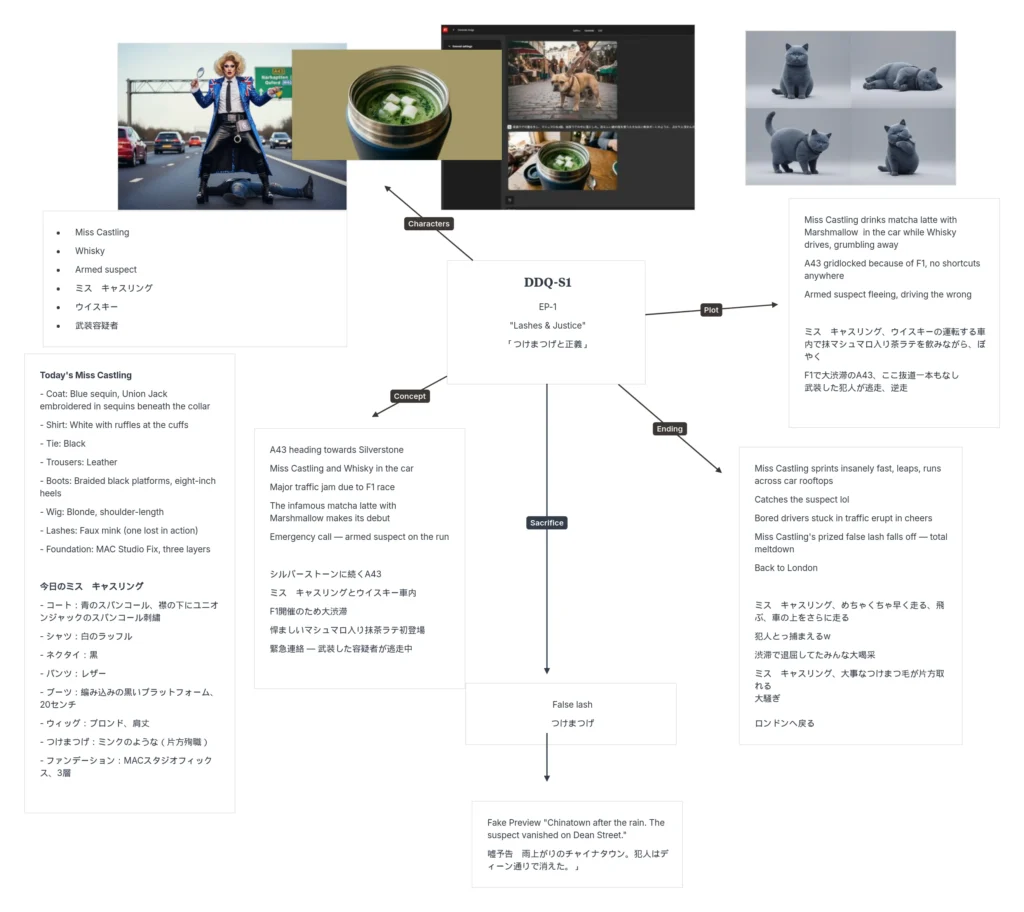
Milanote
Widely used for mood boards, visual research, creative briefs, and project planning of all kinds. If you’re a visual thinker, it’s worth trying well beyond writing.
→ milanote.com
And the last recommendation for today: Yoink.
I take a lot of screenshots when I’m working with AI. By the end of the day I want to look back at the ones I took in the morning, save the important ones — but when I check the desktop, screenshots are covering half the monitor. The little thumbnails all look identical. My brain throws up its hands and dumps the lot in the bin. Even the important ones, gone. I can always take them again, I think — and then when I sit back down, I can’t remember where I took them or what I was doing. Text files, too: similar filenames piling up across folders and the desktop. Wait, which one was I about to open? Looking for a way out of all this is what led me to Yoink.
The basic operation is simple: launch the app, place the window wherever you like, and drag files into it — they’re automatically copied and held there temporarily. It quietly turns “I want this now” into “I actually have this now.” A genuinely clever little app.
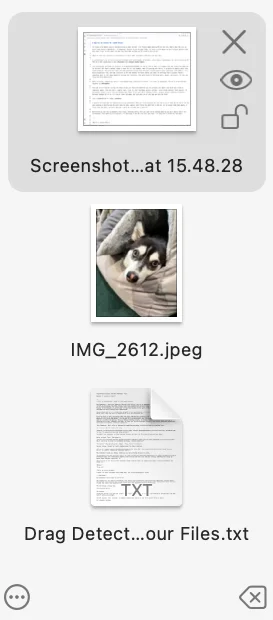
Yoink
Beyond screenshots, you can drag files, images, text snippets, and links into it and sort them out later. Drag-and-drop is the whole interface. Think of it as a sticky note that accepts files — a “just put it here for now” shelf.
→ eternalstorms.at/yoink/mac
If any of these caught your eye, I hope you give them a try!
Written by M.K. Flint